
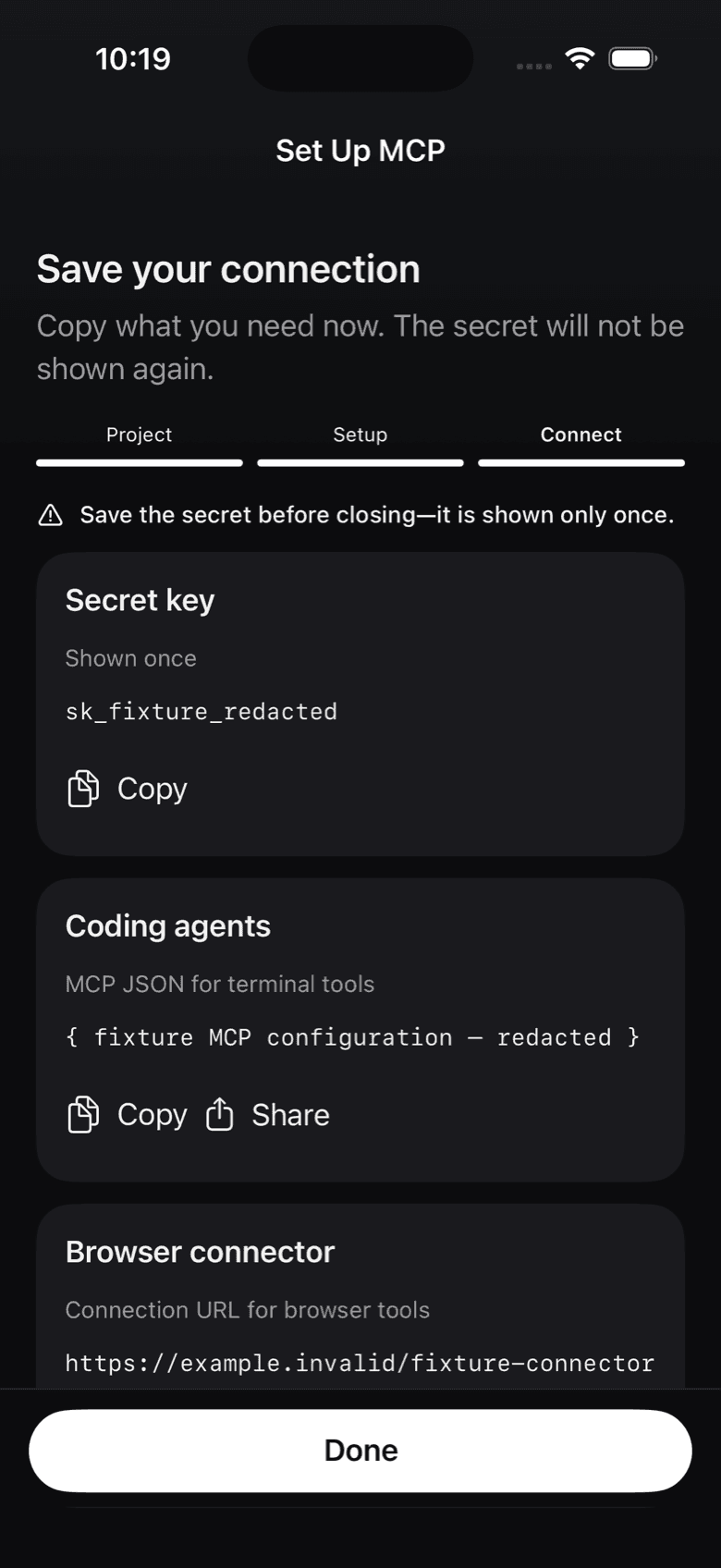
Get the connector URL
When you create a project in the Notifex app, it shows a "Browser connector" URL next to the secret key. You can also copy the connector URL when you create a key in the portal. Copy it then: like the key, it is shown once.
Add it to Claude.ai
- In Claude.ai, open your connector settings and add a custom connector.
- Name it Notifex and paste the connector URL.
- Start a chat and let Claude use the Notifex tools.
Custom connectors depend on your Claude.ai plan and settings. If you added the connector before a new Notifex tool shipped, reconnect it so Claude sees the current tools.
How Claude asks in a chat
A chat turn cannot wait for long. So in Claude.ai, Claude asks with wait=false: the question is created and pushed to your iPhone, and the call returns at once with an id. When you have answered, Claude picks it up with check_answer, or waits for it with wait_for_answer. The question stays open in your inbox until someone answers, so nothing is lost.
Keep the URL safe
The connector URL has your project's key inside it, so anyone with the URL can reach that project. Do not paste it into shared documents. If it leaks, revoke the key in the portal and create a new one. Using Claude Code instead? See Claude Code.
Questions about the Claude.ai connector
Browser-based clients such as Claude.ai only take a URL, so the connector URL carries your project's key.
No need. Claude can ask with wait=false, so the call returns at once, then check back with check_answer or wait_for_answer.
Reconnect the Notifex connector in Claude.ai so it loads the current tool list.
Revoke the key in the portal. Any agent using that key loses access to the project straight away.
Get Notifex on your iPhone
Free on the App Store. Then add one MCP entry and let your agent ask.